
Dear Client, in February 2026, the Ministry of Justice updated the interface of the free financial statement submission system for the Repository of Financial Documents of the KRS. This guide will help you configure your account (required only once) and submit your annual financial statement.
If your account has already been configured — go directly to Step 18.
Step 1.
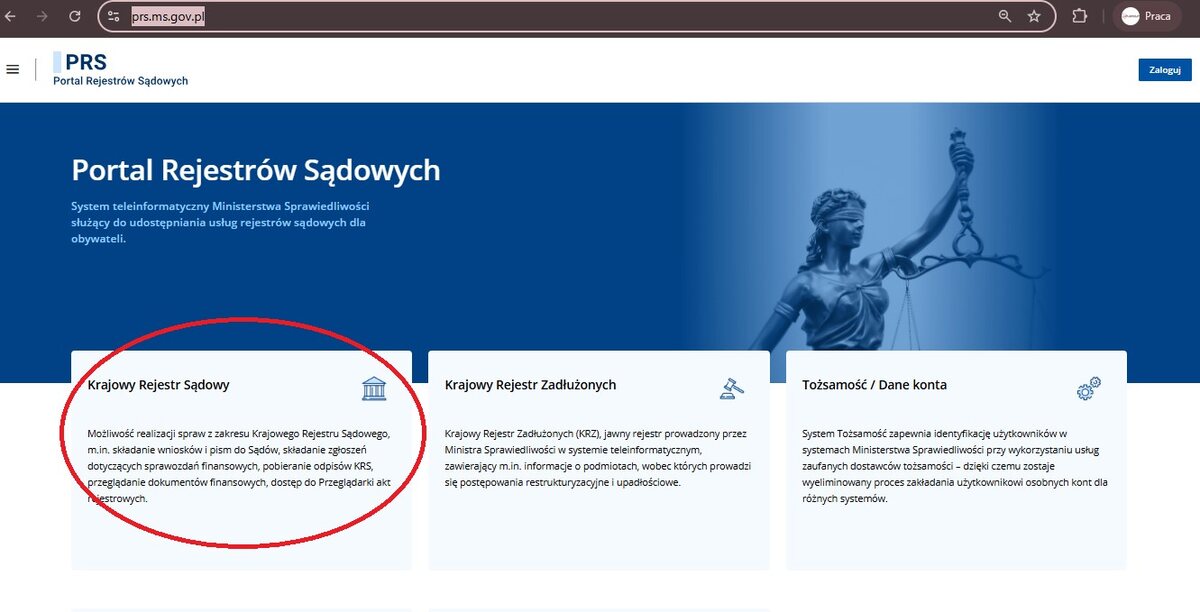
To begin submitting the statement, visit https://prs.ms.gov.pl/. Select the \"Krajowy Rejestr Sądowy\" option, as shown in the screenshot:
Step 2.
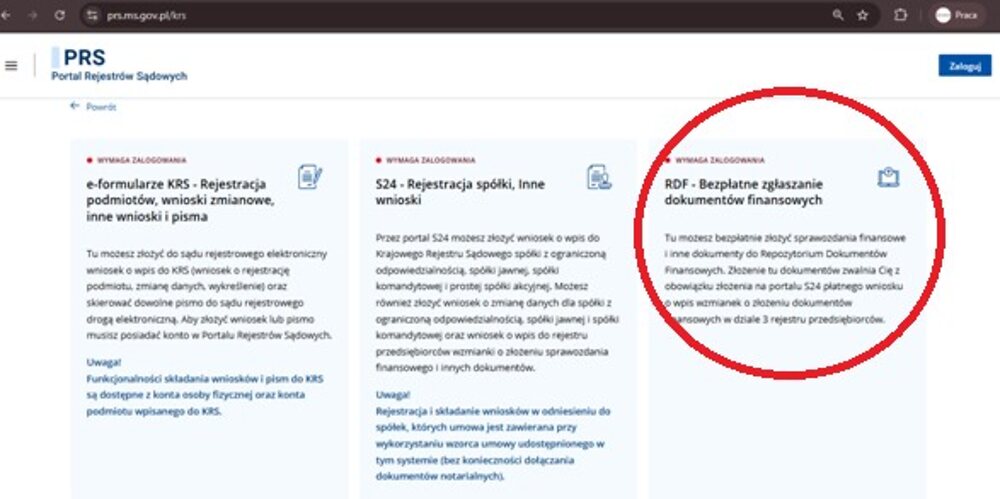
Select the \"RDF\" option, as shown in the screenshot:
Step 3.
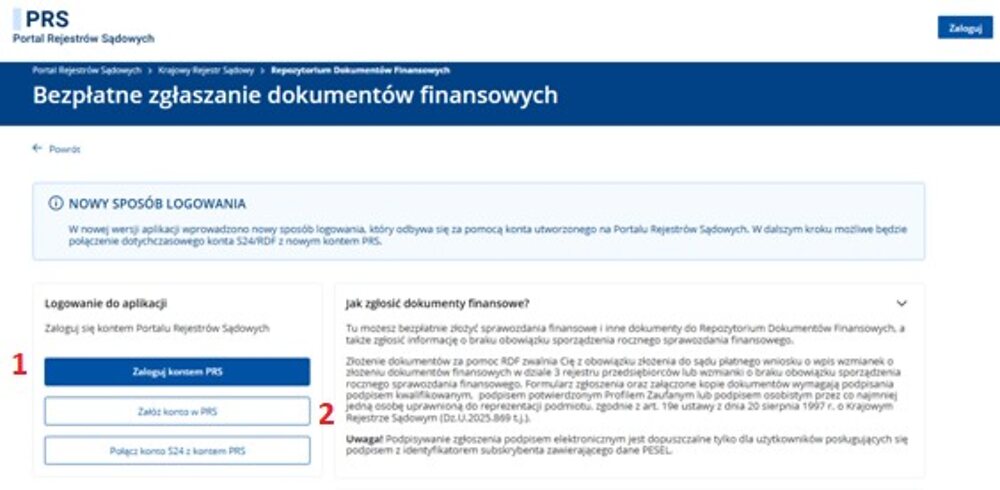
If you have already linked your accounts previously — select the option marked as number 1 in the picture and go to Step 18. If you have not configured your accounts yet, select the option marked as number 2 in the picture:
Step 4.
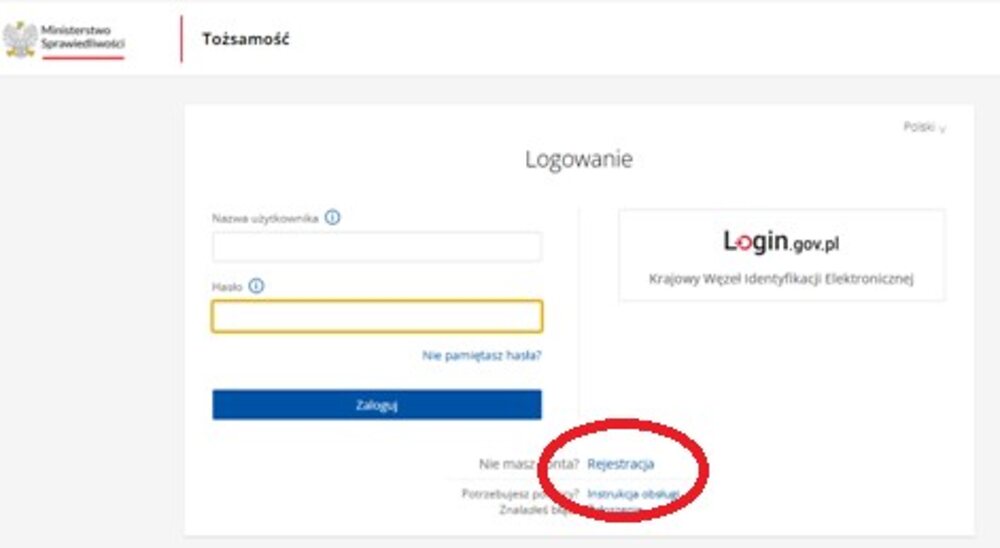
You need to create an account in the Court Registers Portal (PRS). Click the \"Rejestracja\" button, as shown in the illustration:
Step 5.
To register an account in the Court Registers Portal (PRS), you must have an active electronic signature. Select the option shown in the illustration:
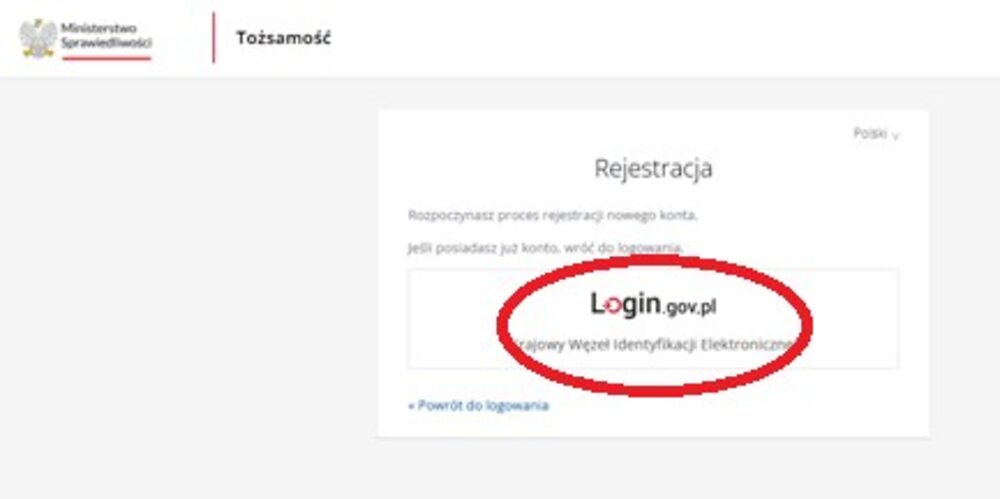
Step 6.
Select the type of signature you possess.
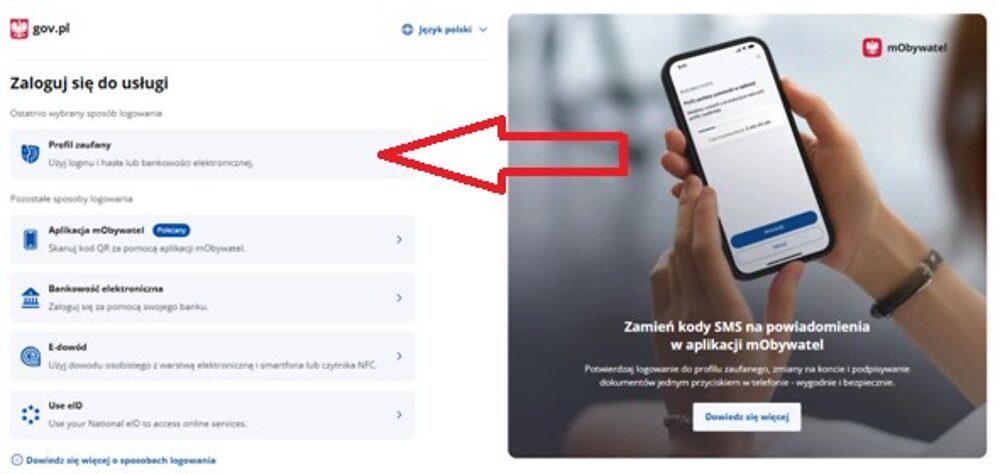
Step 7.
Enter the access details for your electronic signature or log in using your bank account if you have a personal account in one of the suggested Polish banks:
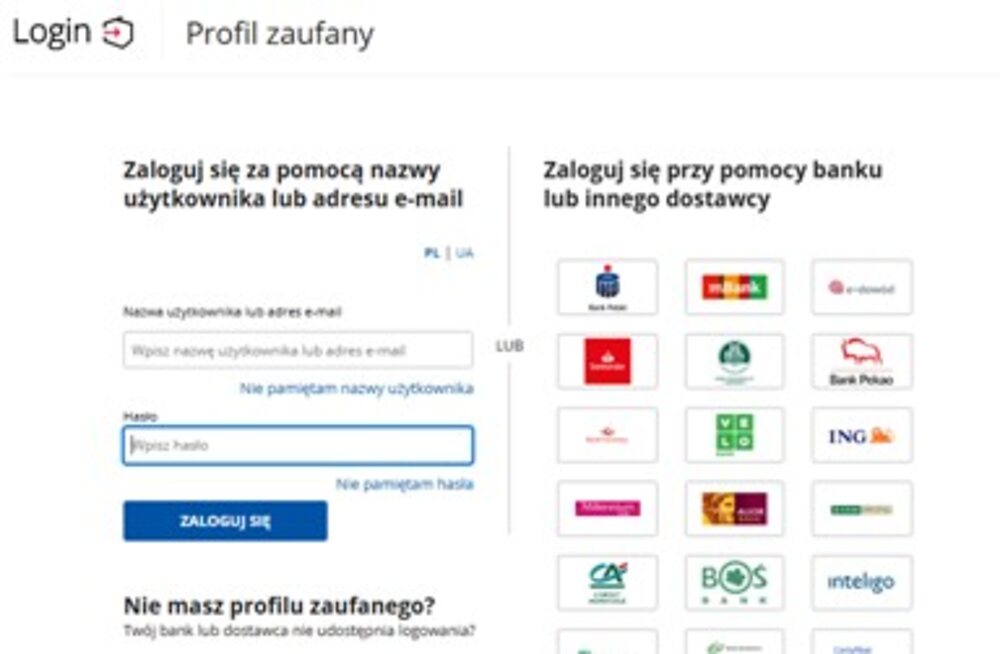
Step 8.
Enter your email address in the appropriate field. Within a minute, a message with a digital confirmation code will be sent to this address. Enter it on the page according to the instructions:
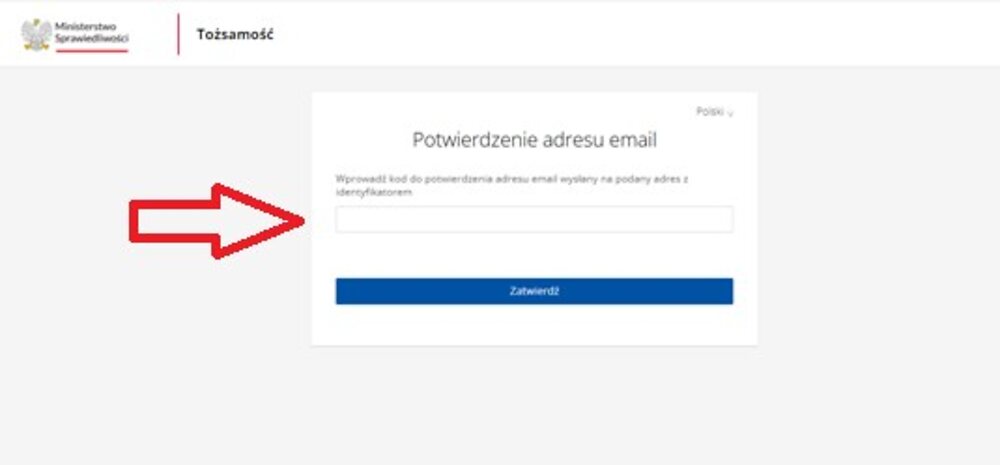
Step 9.
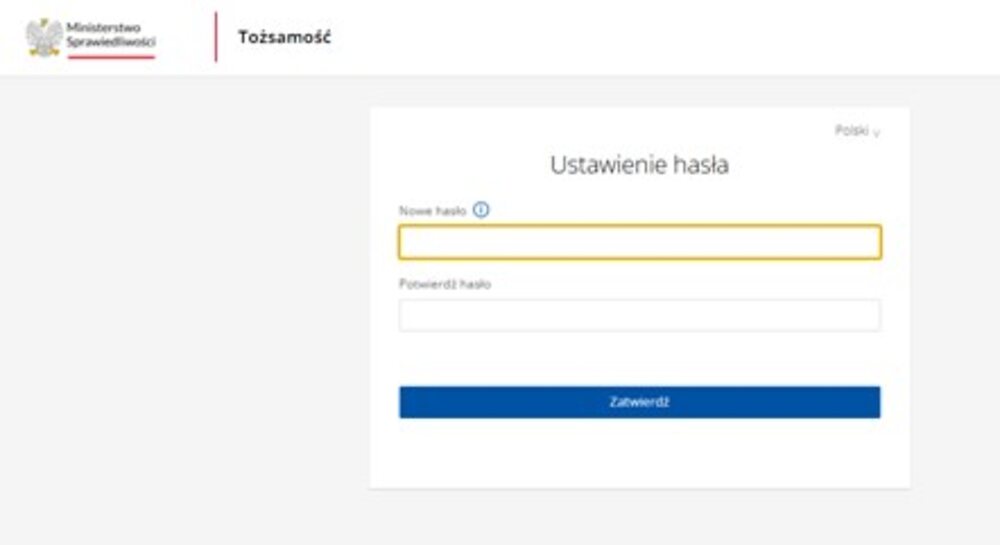
Set a password. Detailed requirements regarding the password structure for accessing the Court Registers Portal (PRS) can be found under the information icon next to the password field.
Step 10.
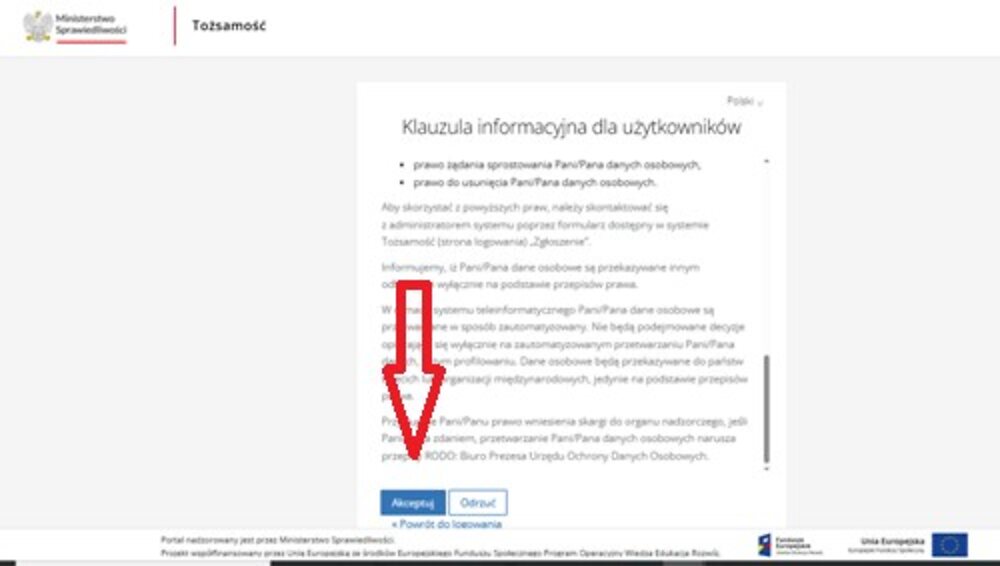
Read the information about personal data processing and click the \"Akceptuj\" button at the bottom of the page if you agree to the data processing rules:
Step 11.
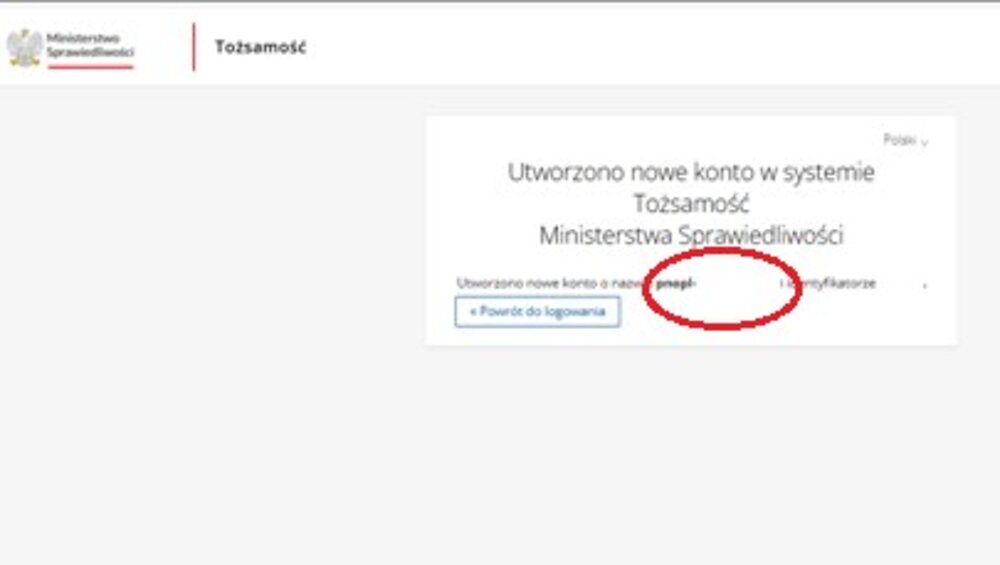
If the previous steps were completed correctly, a message confirming the creation of an individual's account in the Court Registers Portal (PRS) will appear. Please note that the username for logging into the PRS is provided on this page; most often, it has the following format: pnopl- followed by the user's PESEL number:
Step 12.
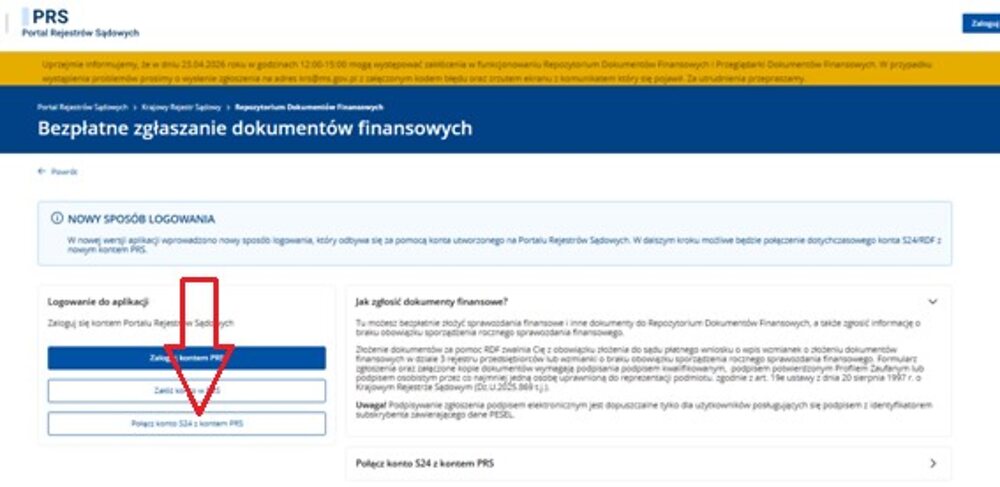
Repeat the actions described in Step 1, and then perform the actions described in Step 2 of this guide. On the page, select the \"Połącz konta S24 i PRS\" button, as shown in the screenshot. This step will allow you to merge the previous and new functionalities for submitting statements.
Step 13.
Log in to the PRS system using the details provided in Steps 8 and 9 of this guide.
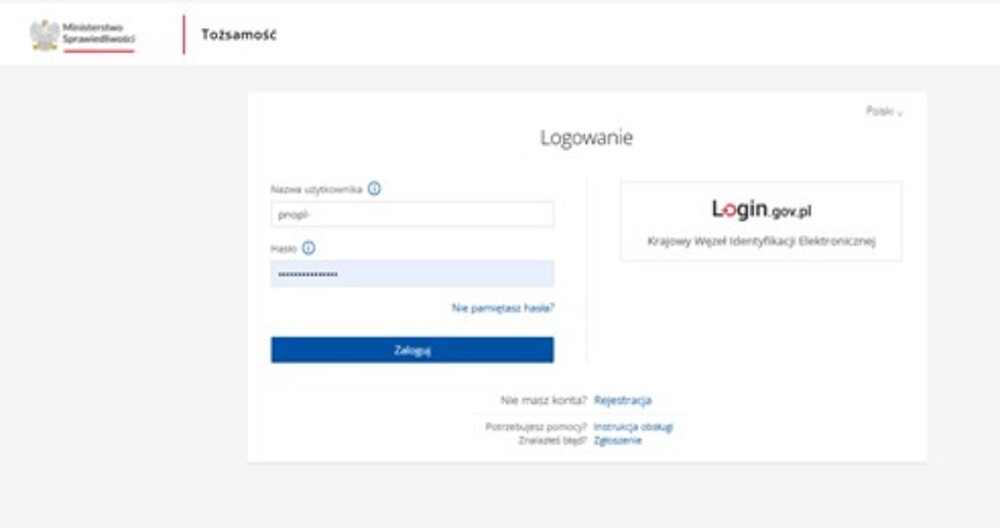
Step 14.
Confirm your login to the PRS system using the one-time password that will be sent to the email address provided in Step 8 during registration:
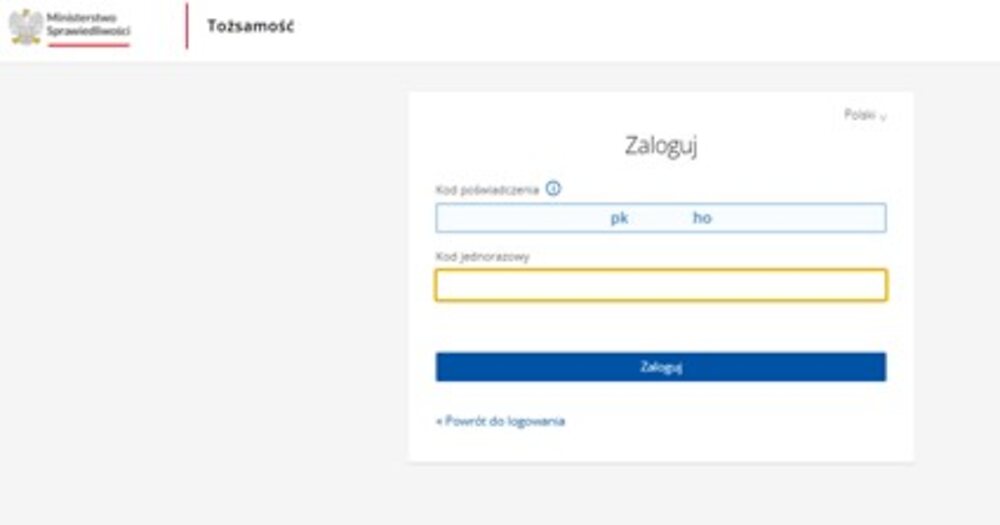
Step 15.
Log in to the RDF (to do this, you must use the details you used to log in to the S24 system). Enter your login and password in the appropriate fields:
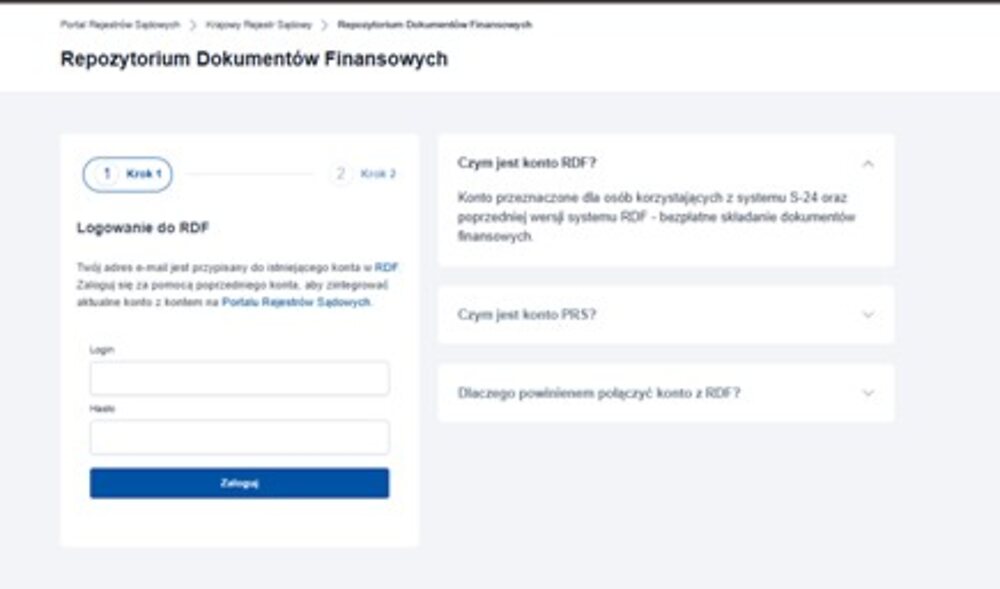
Step 16.
The system displays the account details in the PRS system and the account in the S24 system. If both accounts were registered by the same individual, the details will match. Press the button to integrate the data, according to the instructions in the screenshot. The integration may take a few minutes, and an appropriate message will be displayed upon completion.
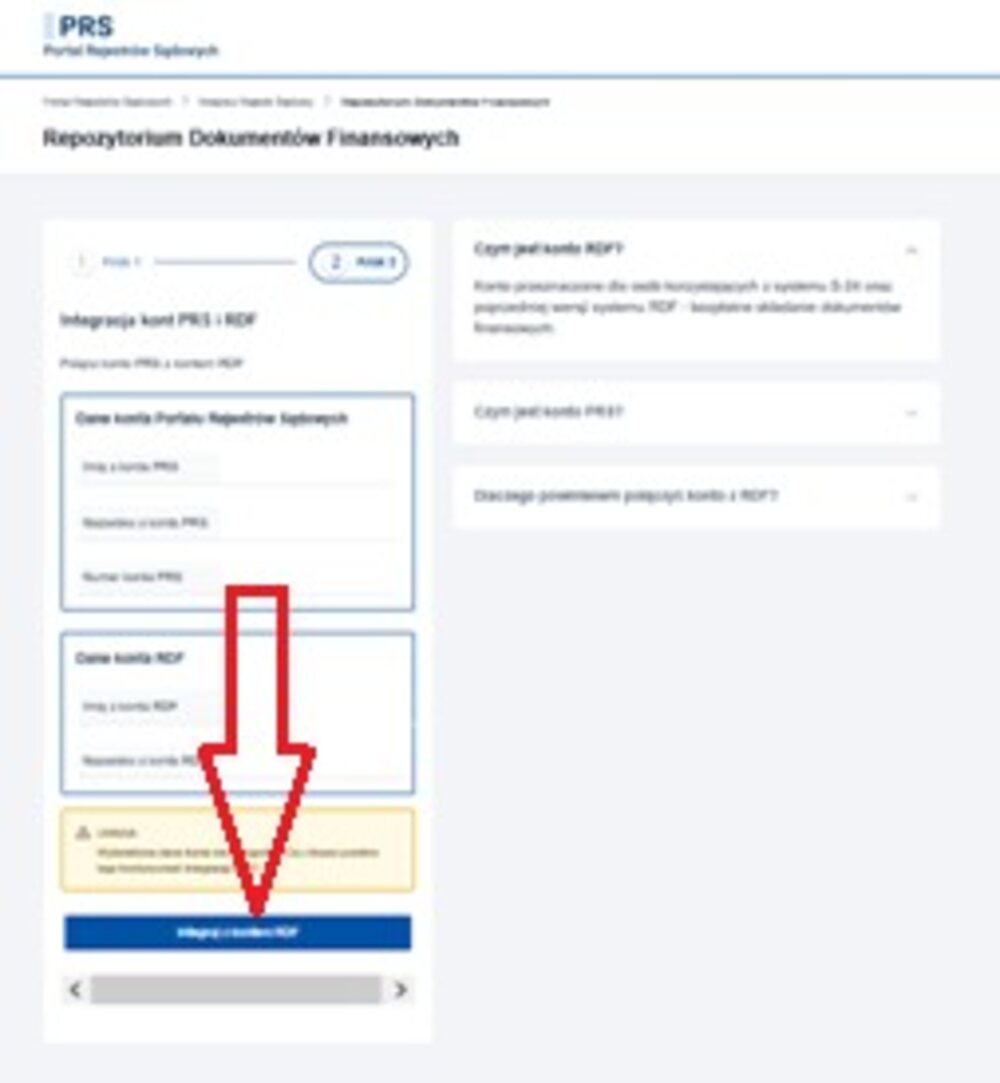
Step 17.
After successfully linking the accounts, repeat the actions described in Step 1.
Step 18.
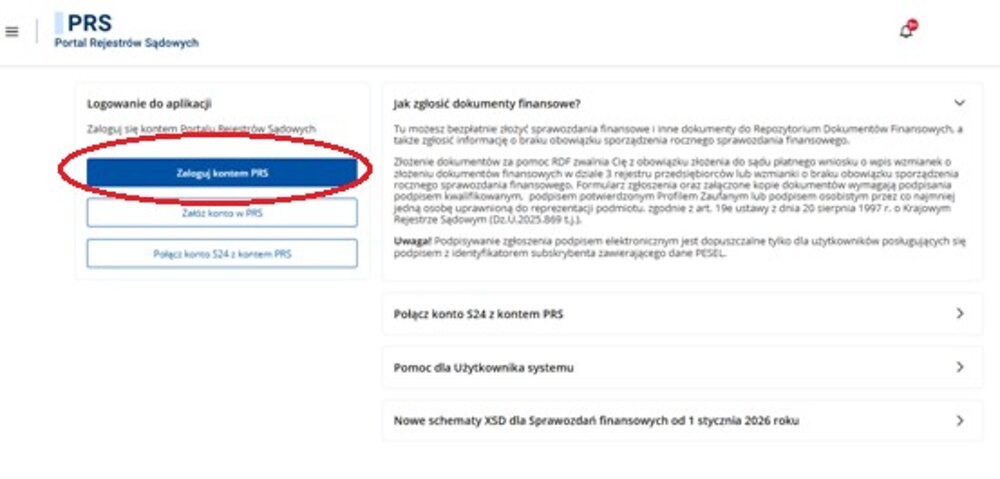
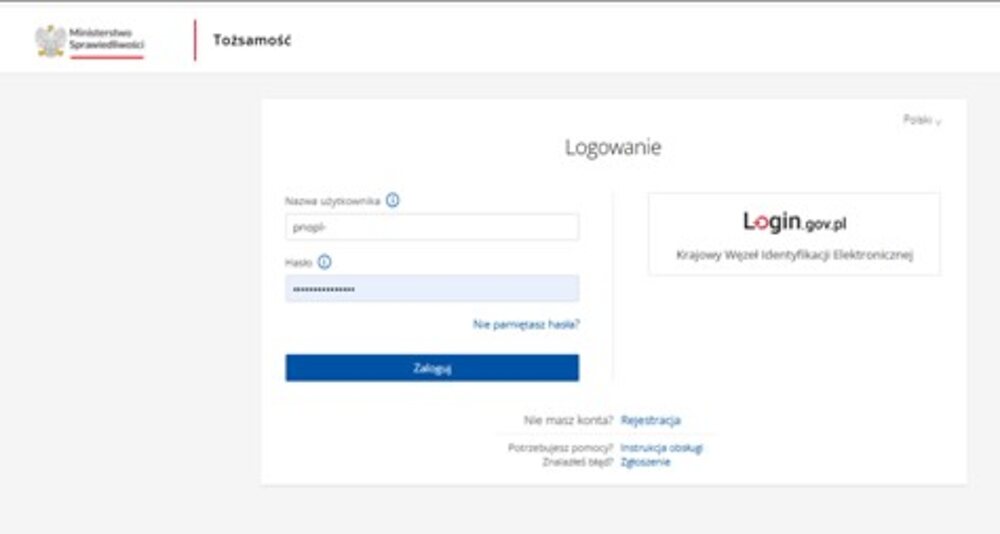
Select the \"Zaloguj się na konto PRS\" option, as shown in the screenshot, and then log in to the PRS using the login and password set in Steps 8–9.
Step 19.
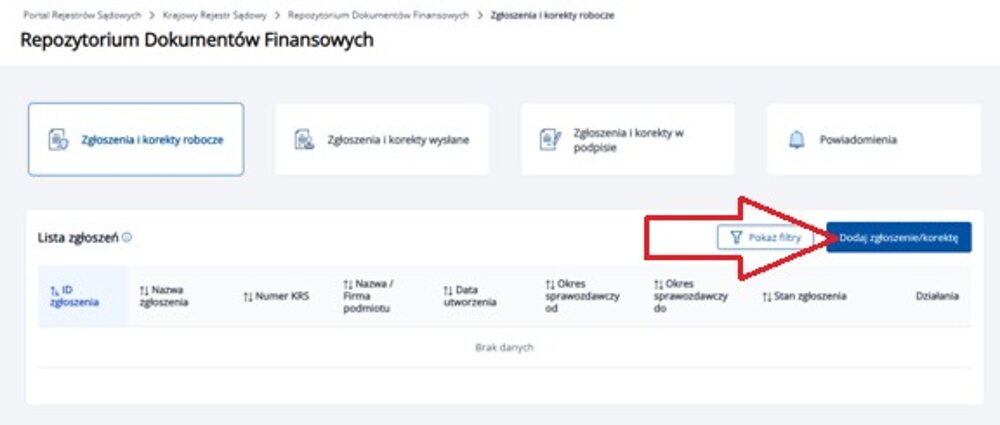
You are now on the homepage of the Repository of Financial Documents. If you wish to create a new statement submission, please select the option indicated in the screenshot.
Good to know:
- If you have created a submission but have not sent it to the Repository, its draft version will be available on this page.
- Draft submissions are automatically deleted from the portal after 14 days from the moment they are saved.
- Signing the report files, creating, and signing the submission do not automatically send the submission to the Repository. Be sure to follow the entire guide to the end and ensure that the annotation about the submitted statement appears in the appropriate section of your company's current KRS extract (typically, within one business day of submitting the statement, the corresponding annotation appears in the register).
Step 20.
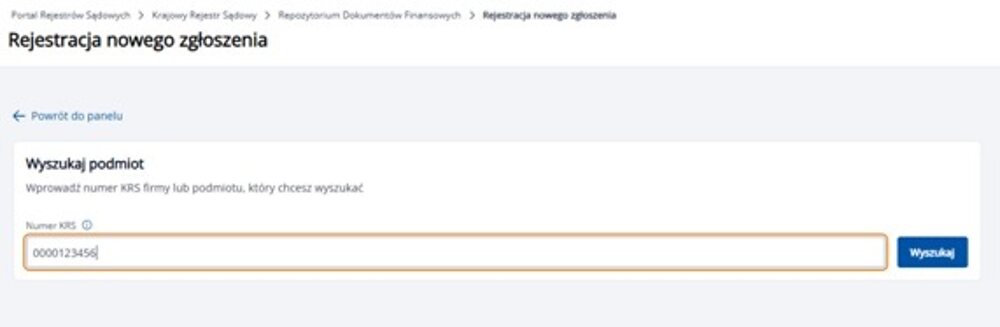
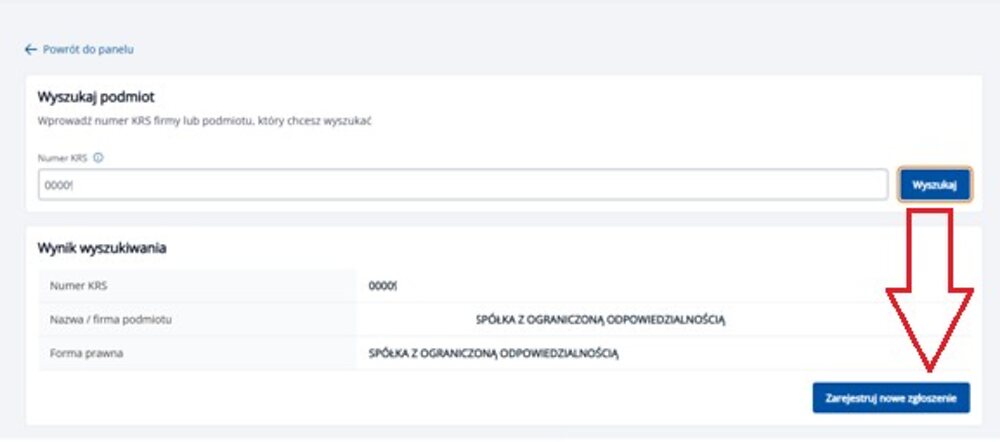
Enter the KRS number of the company for which you are submitting the statement, and then click the \"Znajdź\" button — the portal will automatically retrieve the company data from the KRS register:
Step 21.
If the retrieved data is correct, create a new submission. However, if you see the data of a company other than the one for which you are submitting the report, verify the correctness of the entered KRS number:
Step 22.
Verify the details of the representatives; if the data is correct, proceed to the next step.
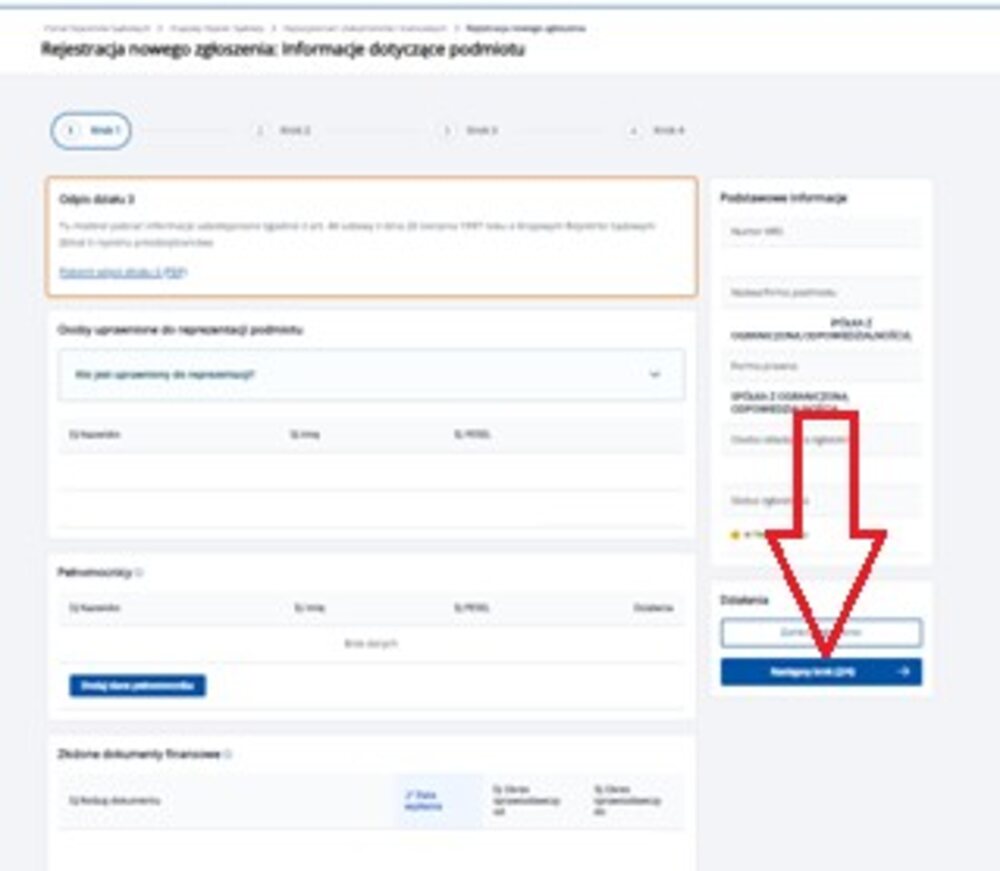
Recommendation — at this stage, it is advisable to have the report files already signed.
Please note that by default, the annual financial statement package consists of the following files:
- Annual financial statement in xml format — must be signed by the entire management board of the company. If one of the board members cannot sign the statement or refuses to sign it — see the guidelines for Step 25. The file must contain at least one electronic signature for the system to allow its addition.
- Management board report on activities (report on the company's activities — if prepared) in pdf format — must be signed by the entire management board of the company. If one of the board members cannot sign the report or refuses to sign it — see the guidelines for Step 25. The file must contain at least one electronic signature for the system to allow its addition.
- Resolution of the general meeting of shareholders on the approval of the financial statement (in inPL reporting packages — \"Uchwała nr 1\") — in pdf format — must be signed by all shareholders of the company, and the file must contain electronic signatures.
- Resolution of the general meeting of shareholders on the distribution of profit or coverage of loss (in inPL reporting packages — \"Uchwała nr 2–3\", scanned in a single file) — in pdf format — must be signed by all shareholders of the company, and the file must contain electronic signatures.
Step 23.
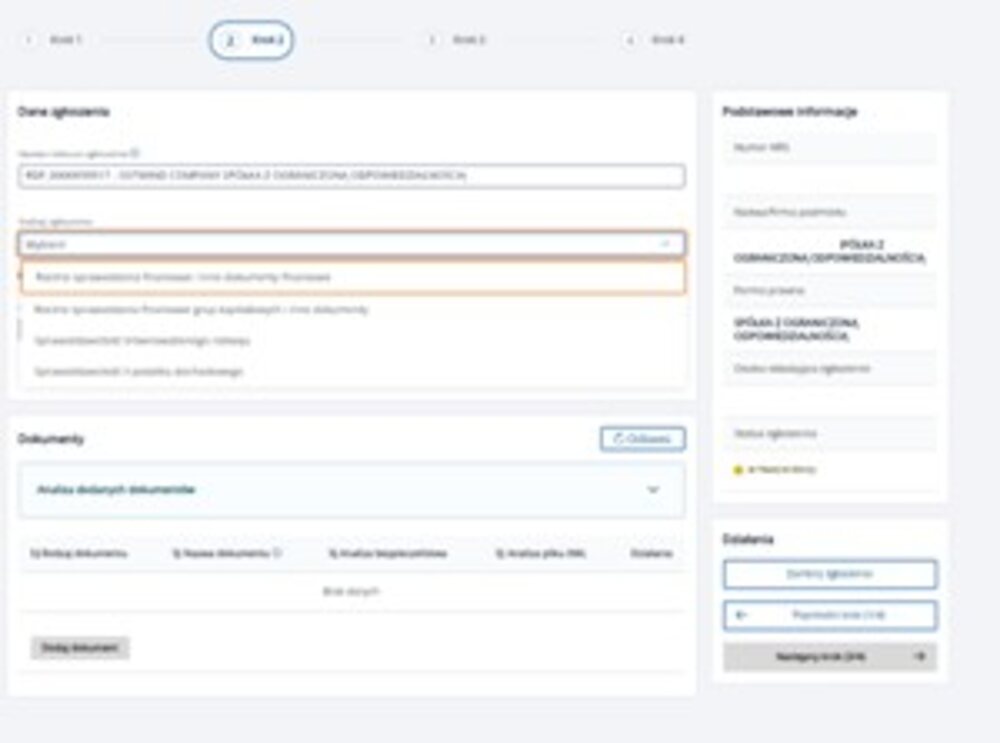
Select the type of submission — \"Roczne sprawozdanie finansowe i inne dokumenty finansowe\".
Select the start and end date of the reporting period. Usually, the reporting period starts on 01.01 and ends on 31.12 of the given financial year.
Exceptions include cases when a) the company submits a statement for the year in which it was registered, or b) the company submits a statement for its first combined financial year according to its articles of association. In such cases, the start and end dates of the reporting period must be provided exactly as specified in the xml statement.
Step 24.
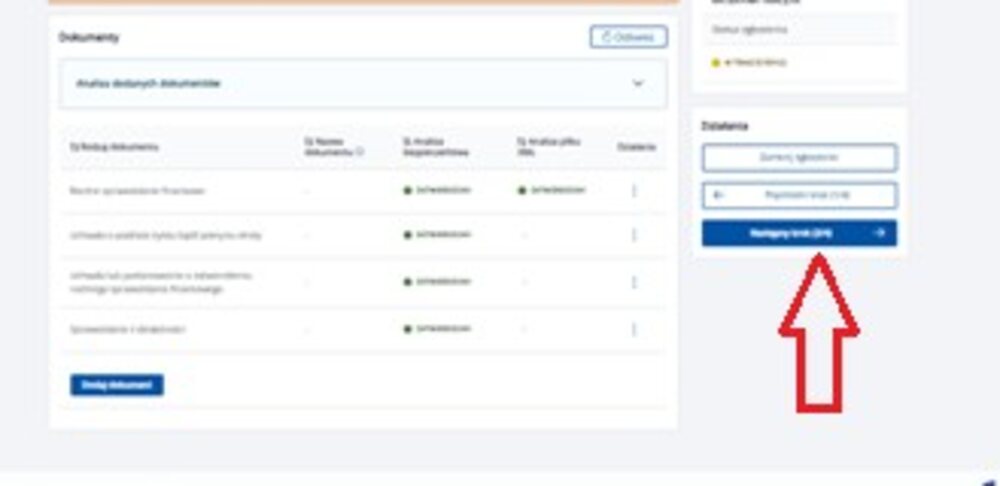
Upload the sequentially signed files listed in Step 22.
Note: for the annual financial statement in xml format, as the \"data sporządzenia\" you must enter the date the file was generated, not the date it was signed; this date is provided in the file structure below the start and end dates of the reporting period.
For the remaining files, you should enter the date of actual signing as the \"data sporządzenia\".
Note — the report files must be submitted within 14 days from the moment they are signed.
The annual financial statement in xml format undergoes system verification by the portal. You must wait until the data validation status is \"Zatwierdzony\", as shown in the screenshot.
Step 25.
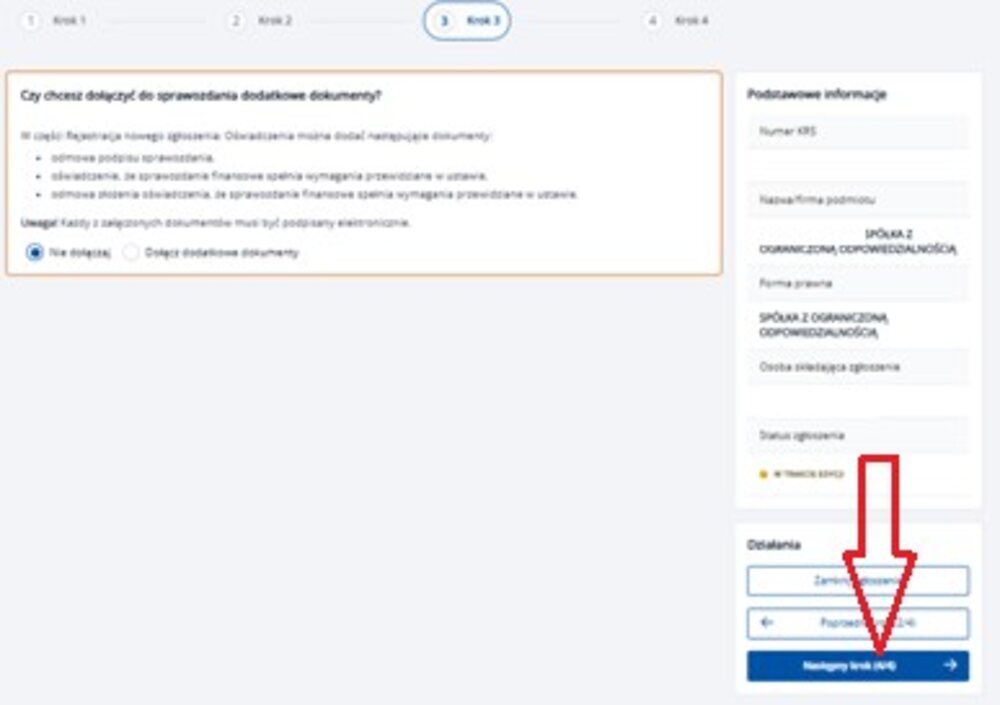
In the next step, you can attach additional documents.
If one of the owners and/or directors does not have the technical ability to sign one of the report files or objects to signing it — an appropriate declaration must be prepared and signed stating the reasons, and a scan (in pdf format) of this declaration must be attached precisely at this stage. If you are not attaching any declarations — proceed to the next step.
Step 26.
In the next step, you must sign the declaration regarding the financial statement.
Signing should take place in accordance with the rules of company representation by the management board. If the articles of association grant each director the right to represent the company independently of the other directors — the signature of any board member on the declaration is sufficient. However, if the articles of association require joint representation by all directors — the declaration must be signed by every member of the management board.
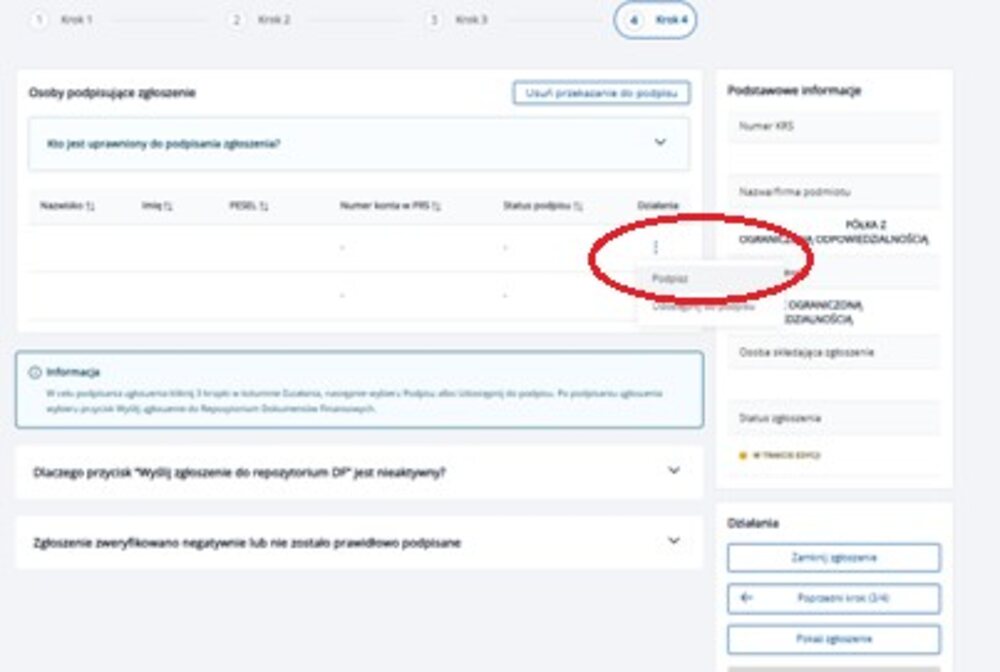
To provide a signature, select the \"Opcje\" button next to the corresponding name, and then press the \"Podpisz\" button:
Step 27.
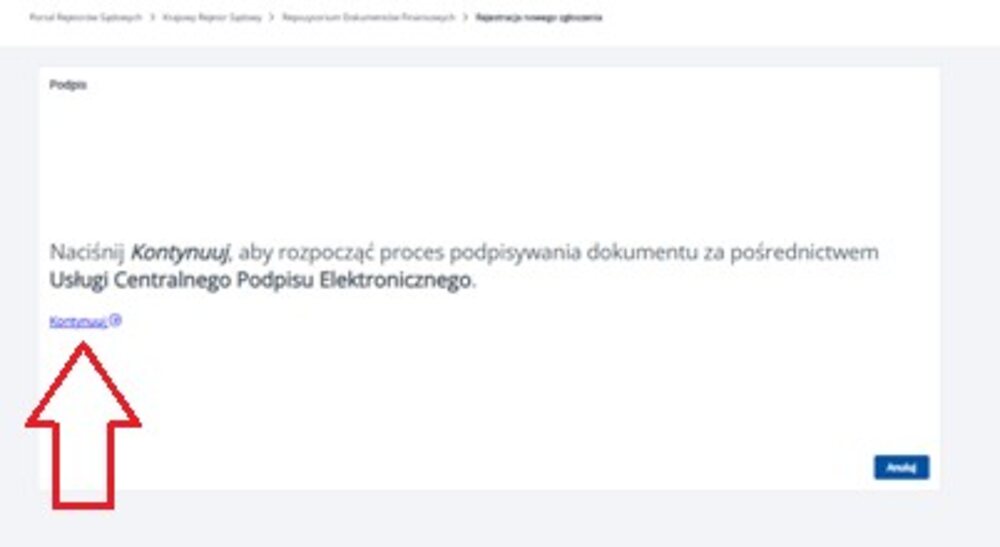
Press the \"Kontynuuj\" button, as shown in the screenshot:
Step 28.
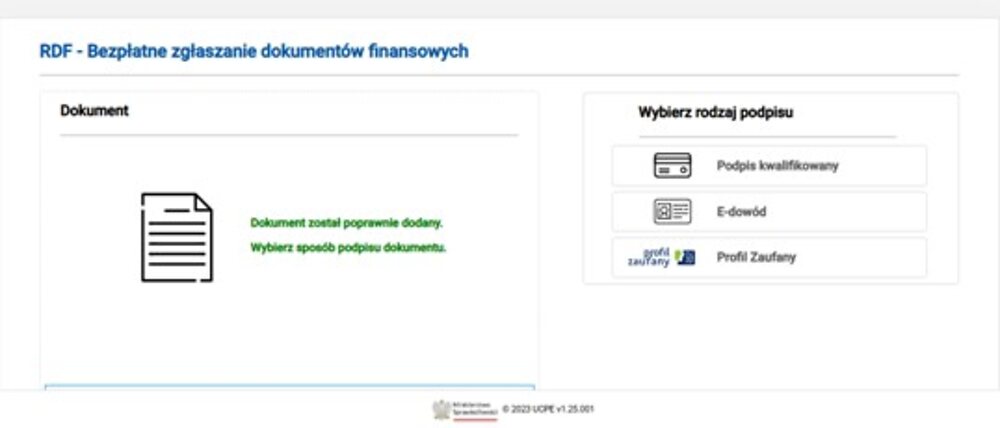
Select the appropriate type of signature and follow the instructions displayed on the page for the chosen signature type.
Step 29.
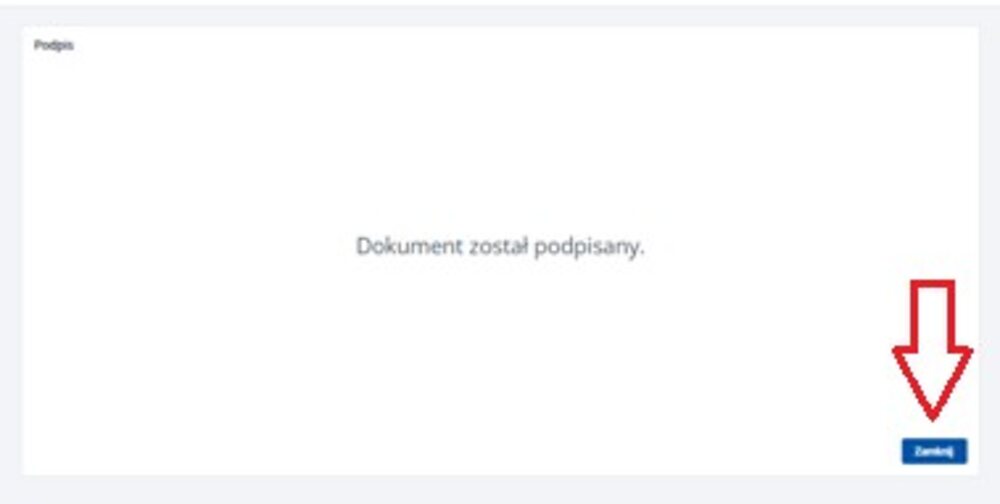
After successful signing, a relevant message will appear on the page; press the \"Zamknij\" button:
Step 30.
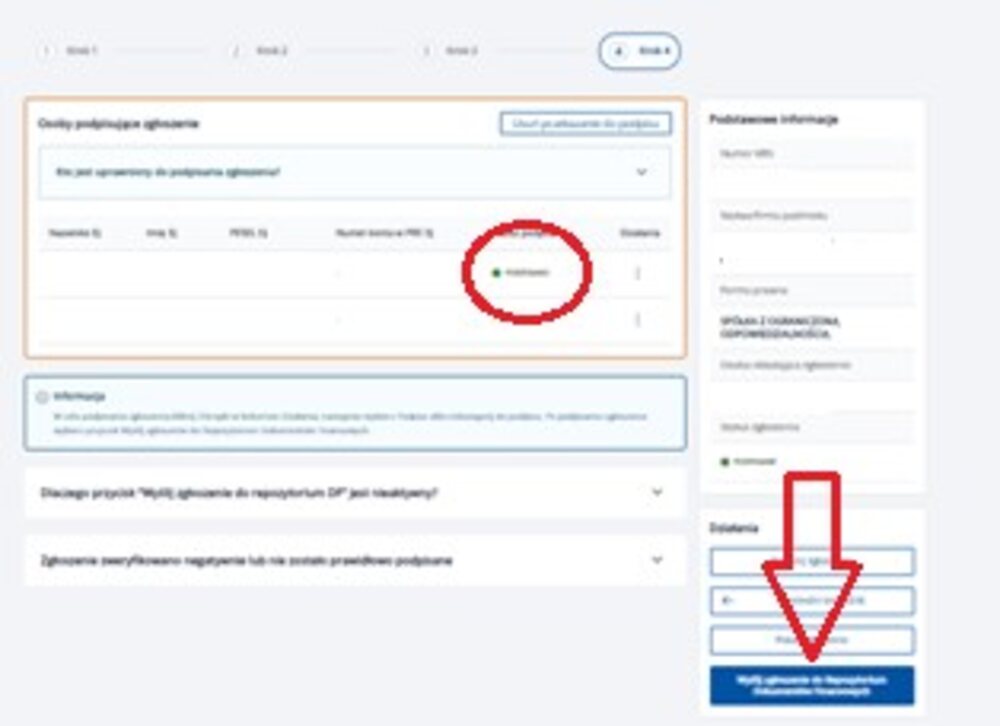
After signing the submission according to the instructions provided in Step 26, it must be sent to the Repository of Financial Documents. To do this, click the button and confirm the submission, as shown in the screenshot:
Congratulations, you have submitted your annual financial statement.
To avoid technical issues, we recommend checking if the information about the submitted statement appears in the current extract of your company from the KRS, in column 2 of section 3 of the extract.
The current extract can be downloaded free of charge at: https://wyszukiwarka-krs.ms.gov.pl/